7.3 Selecting a contact source
You can individually select which contact sources should be displayed in your contact list. For example, if you select the Colleagues contact source and activate the Online filter, you can see at a glance who of your colleagues is currently available.
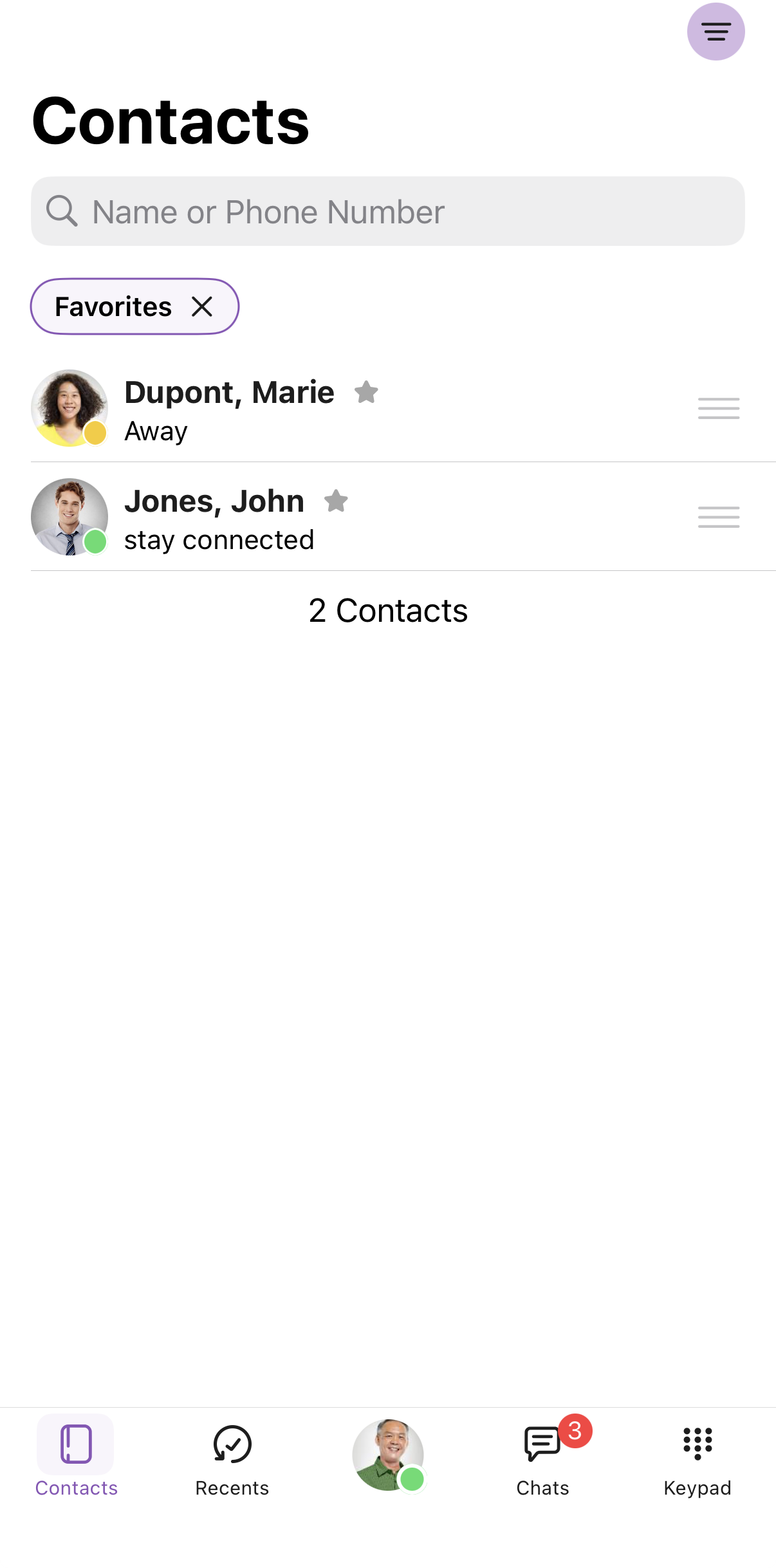
To select your individual contact list
 A page with filters and further contact groups appears. You can combine the filters with the contact groups below
Filter | Explanation |
|---|---|
Favorites | Contacts that you have marked as favorites |
Online | Contacts that are online |
Contact source | Explanation |
|---|---|
Colleagues | All employees in your company are displayed |
Local | All contacts on your device For these contacts, you must first grant Swyx Mobile read access. |
Company | External contacts visible to all employees |
Above the contact list, you can see which filters are selected.Tap the cross on a filter to deactivate it.All locally stored contacts remain local and are not uploaded to the Swyx Mobile server. You must allow the app to access your locally stored contacts in order to view them. You can allow access under Settings | Swyx Mobile | Contacts .
To set the order of the favorites in the contact list
You can define the order of your favorites so that you can access your most important contacts as quickly as possible.
1 Press and hold the  icon of the corresponding favorite and drag it to the desired position.
icon of the corresponding favorite and drag it to the desired position.Your favorite will be moved to the desired position.The sorting of favorites is synchronized between Swyx Mobile iOS, Swyx Mobile Android, Swyx Mobile iPadOS and Swyx Desktop macOS.
It is only possible to specify the order and thus create a sorting according to importance within the favorites filter. Outside of this filter, the contacts are displayed in alphabetical order.